Getting started / Quick start
Quick start
Open a repository in the desktop app, read its changesets, look at a diff, filter, compare with a release and export, in about five minutes.
This walk-through uses the desktop app on a local clone, without any connection. If mergecat is not installed yet, follow Installation first. No repository at hand? Build from source and run npm run fixtures: it creates sample repositories in .fixtures/.
Open a repository
Click Open a repository… on the welcome screen, or press ⌘O on macOS or CtrlO on Windows and Linux (File › Open Repository…). Choose the folder of a local clone; a subfolder of the clone works too.
mergecat opens the History page on the default branch: the branch that origin/HEAD points to, else origin/main, origin/master, main or master, else the branch that is checked out. Your last ten repositories are listed on the welcome screen and in the repository menu at the top left.
Choose a branch
The branch picker next to the repository name shows the branch being analysed. Click it, type part of a name to filter the remote and local branches, and pick one. mergecat reads the history of that branch; the list header shows how long it took.
Read the changesets
Each row is one entry on the first-parent path of the branch, newest first:
- a merge icon marks an integration: a merge commit with the commits it brought in, shown as a group;
- a commit icon marks a direct commit, made on the branch itself.
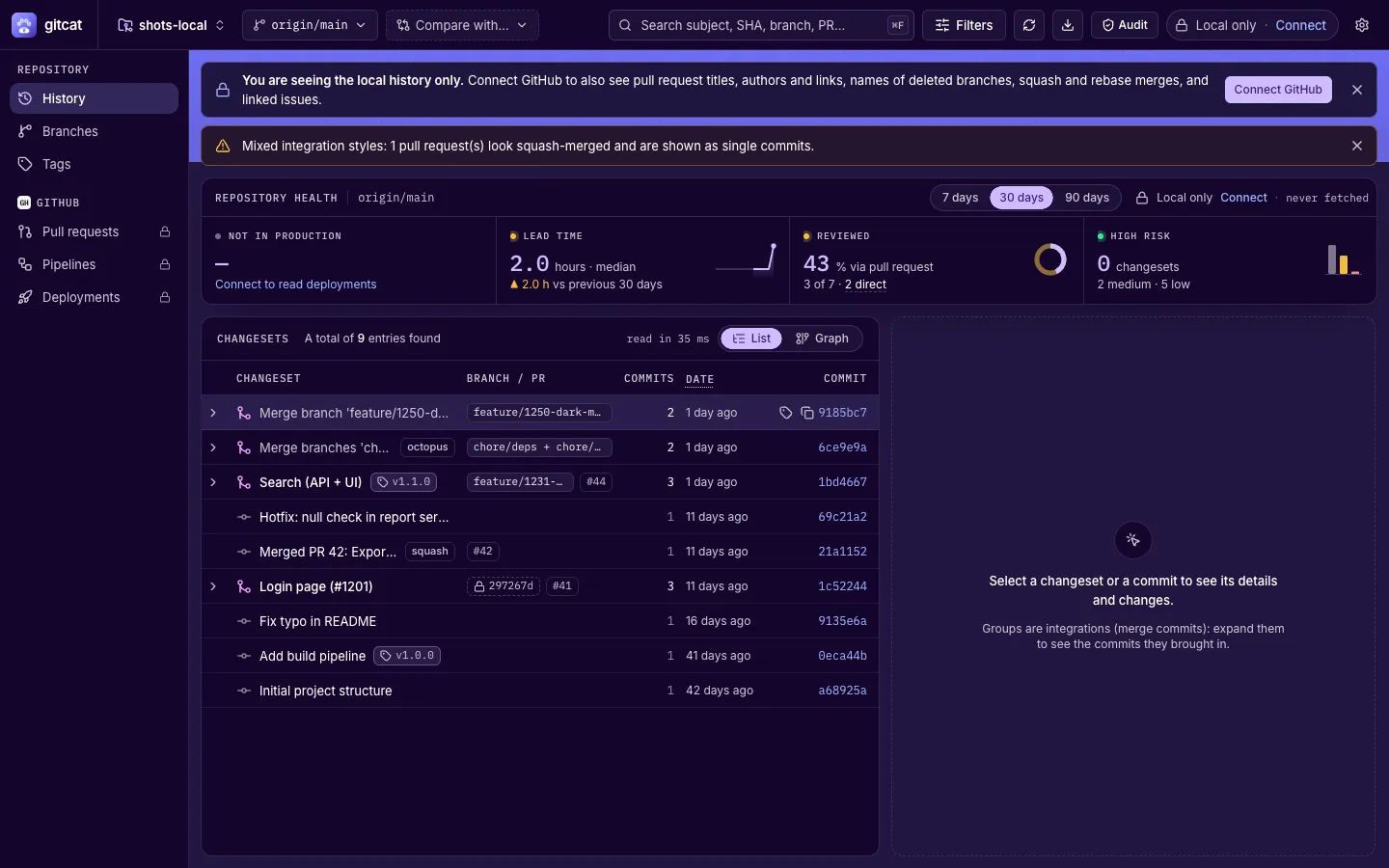
The changesets of origin/main, local only.
The Branch / PR column names the merged branch and the pull request number when the merge message contains them. Hover over a branch chip to see where the name comes from. Commits counts the commits of the group, Integrator is who made the merge, Date is when the change entered the branch.
Expand a group
Click the chevron at the start of a merge row, double-click the row, or select it and press → (← collapses, Space toggles). The group lists the commits that the merge brought in. Merges of other branches inside it appear as nested groups. The merges of main into the feature branch (forward integration) are hidden, because they brought nothing new.
See a diff
Select a row. The details pane on the right shows who integrated it and when, the merged branch and, for a commit, the integration it entered with. The Changes tab shows the diff:
- for a group, everything the integration changed, as one diff;
- for a commit, the changes of that commit.
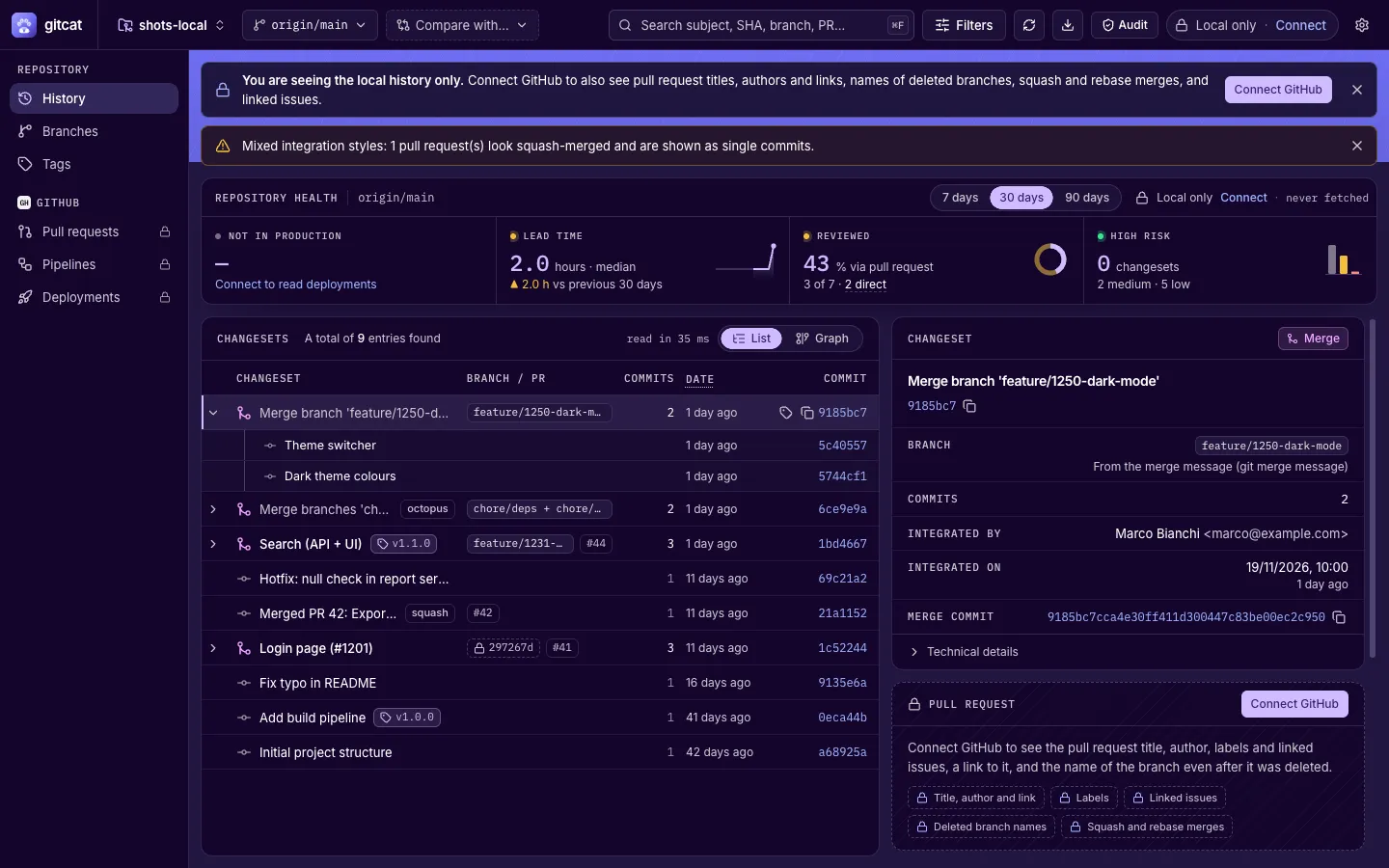
A changeset selected: details above, the combined diff below.
Filter and search
Press ⌘F or CtrlF and type in the search box: it matches the subject, a SHA, a branch name or a pull request number such as #44, also of commits inside groups. A group that matches through its commits shows a match chip.
Click Filters for the Author, From and To fields and the Hide forward-integration merges switch. Dates refer to when the change entered the branch. Clear filters resets them.
Compare with a tag
Click Compare with… and choose a tag, for example your last release. The list now shows only what entered the branch since that tag, grouped the same way. To go back, open the picker again and choose Clear comparison. More in Compare and trace commits.
Connect GitHub (optional)
The pill at the top right says Local only · Connect when the repository is on GitHub, GitLab or Azure DevOps. Click it to open Connections and sign in. mergecat then adds pull request titles and links, names of deleted branches, squash and rebase merges, linked issues and the Pull requests, Pipelines and Deployments pages. See Connect GitHub.
Export
Click the Export button (the download icon) and choose Export as Markdown, Export as CSV or Export as HTML. The file contains the current view, including the comparison and the filters, and is saved where you choose.
If something goes wrong
| Message | What to do |
|---|---|
Not a Git repository: … | Choose the folder of a clone, or a folder inside one. |
Git refuses to read this repository because it is owned by another user. | Run the git config --global --add safe.directory "…" command shown in the message, then open the repository again. |
| Git not found on the welcome screen | Install Git, or set its path in Settings › Git executable. See Install Git. |
This is a shallow clone: … | Run git fetch --unshallow in the clone for the complete history. |