Desktop app / Deployments and environments
Deployments and environments
See which tag and commit every environment runs, what each deployment brought, and what deploying one environment to another would bring, with release notes and an audit report.
The Deployments page follows changes past the branch: which version every environment runs, when it got there and through which pipeline run, and what the next deployment would bring. Open it from Deployments in the navigation.
The page needs the hosting service of the repository to be connected; until then it offers Connect. Deployments come from GitHub deployments, GitLab environments and deployments, and Azure DevOps environments (YAML deployment jobs). Classic Azure DevOps release pipelines are not covered.
Without a connection
The VS Code extension can also define environments locally, from a branch that always points at the deployed code or from a tag pattern. See VS Code extension.
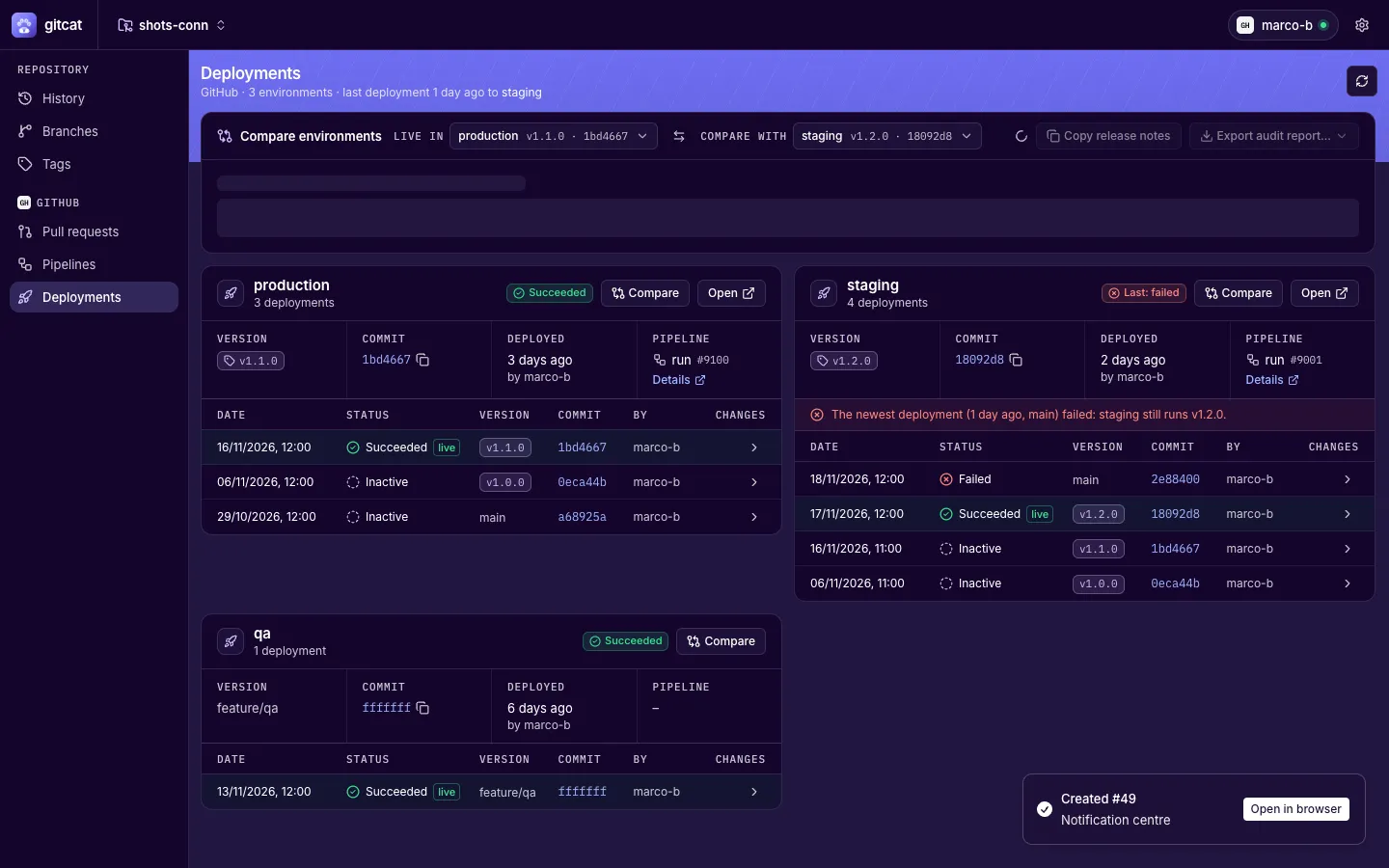
One card per environment: what runs there now, and what ran before.
The header shows the service, the number of environments and when the last deployment happened, and where. The refresh button reloads the deployments.
Environment cards
Each environment has a card with its name, the number of deployments and the status of the newest deployment. Compare sets this environment as the target in Compare environments; Open opens the environment’s URL when the service reports one.
The four facts at the top describe the deployment that is live now:
| Fact | Content |
|---|---|
| Version | The tag on the deployed commit. Click it to open the History page on that tag. Without a tag, the deployed ref. |
| Commit | The short SHA, with a copy button. |
| Deployed | How long ago, and by whom. |
| Pipeline | The pipeline and run number, with Details to open the deployment on the service. |
When the newest deployment is not the live one, because it failed, was canceled or is still running, a bar says so and which version the environment still runs. An environment without a successful deployment says “No successful deployment yet”.
Deployment history
Below the facts, the history lists the deployments newest first: Date, Status, Version, Commit, By and Changes. live marks the deployment running now. The card shows eight deployments; Show all lists the others.
Open a row with the toggle in the Changes column to see what that deployment brought, as changesets, compared with the deployment it replaced:
- “Brought N changesets” for a successful deployment, “Would have brought” for a failed one;
- “Removed N changesets” when the deployment went back to an older version (a rollback);
- “First recorded deployment: nothing to compare with” for the first one.
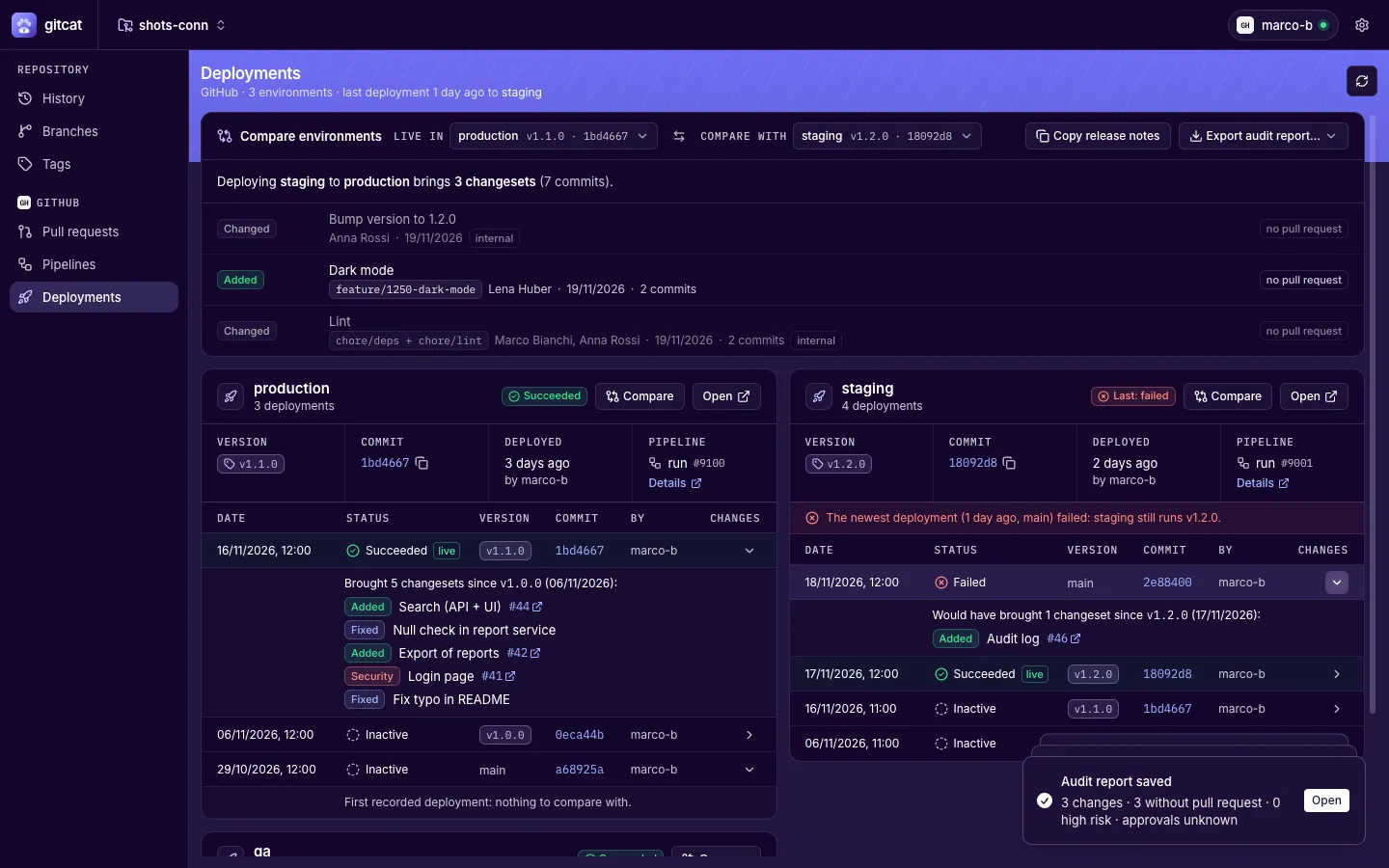
What one deployment brought, compared with the one it replaced.
Compare environments
The Compare environments panel at the top of the page answers “what would deploying staging to production bring?” in changesets.
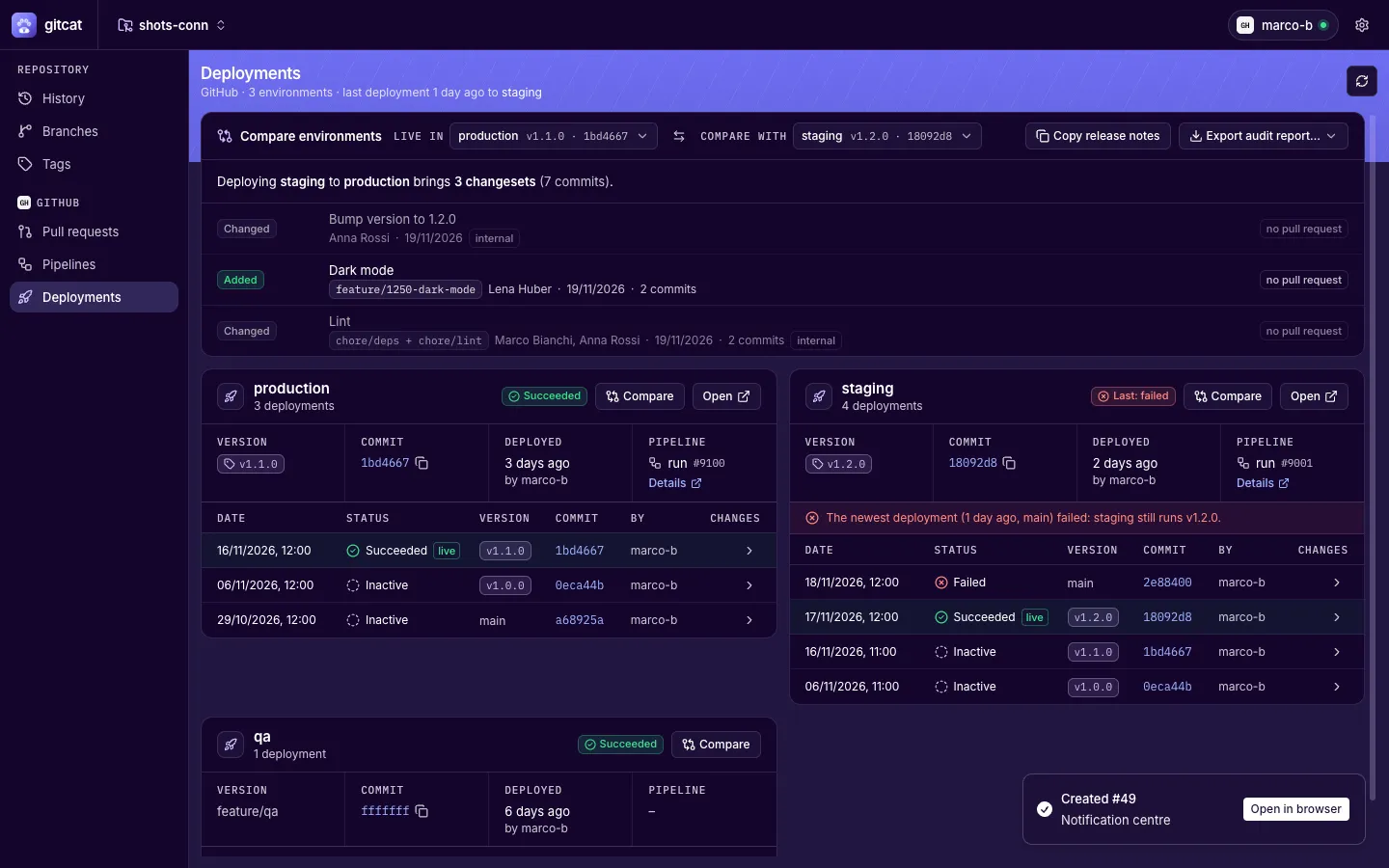
Deploying Staging to Production: what it brings, and who approved it.
Pick the two sides
Live in is the environment that would receive the deployment. Compare with is what you would deploy: another environment, or the default branch (“not deployed yet”). The swap button exchanges them; the Compare button of an environment card sets that environment as Live in.
The first comparison is picked for you: the production environment (a name containing prod or live, else the one deployed longest ago) against the most recently deployed other environment. With a single environment, the default branch is compared with it.
Read the result
The summary says what deploying would do:
| Result | Meaning |
|---|---|
| “Deploying Staging to Production brings N changesets (M commits)” | The changes listed below would reach the environment. |
| “Production and Staging run the same commit” | Nothing to deploy. |
| “Production has N changesets that Staging does not have” | Deploying would remove them. |
| “Production also has N changesets that Staging does not have (for example a hotfix not merged back)” | Both sides have changes of their own; those of the live environment are listed separately under Only in. |
| A commit is not in the local repository | Click Fetch, then the comparison runs again. |
Each changeset shows:
- a category from Keep a Changelog (Added, Changed, Deprecated, Removed, Fixed, Security), taken from the conventional-commit prefix of the title (
feat:,fix:…), the branch prefix (feature/,fix/…) or the pull request labels, else Changed; BREAKING for breaking changes; - the title, the pull request link, the branch, the authors, the date and the number of commits;
- internal for housekeeping (docs, tests, CI, chores), dimmed and left out of the release notes;
- the review state: approved by …, not approved, no pull request, or review unknown when the service did not report approvals.
Each side lists at most the newest 500 changesets; the panel says when a list was cut.
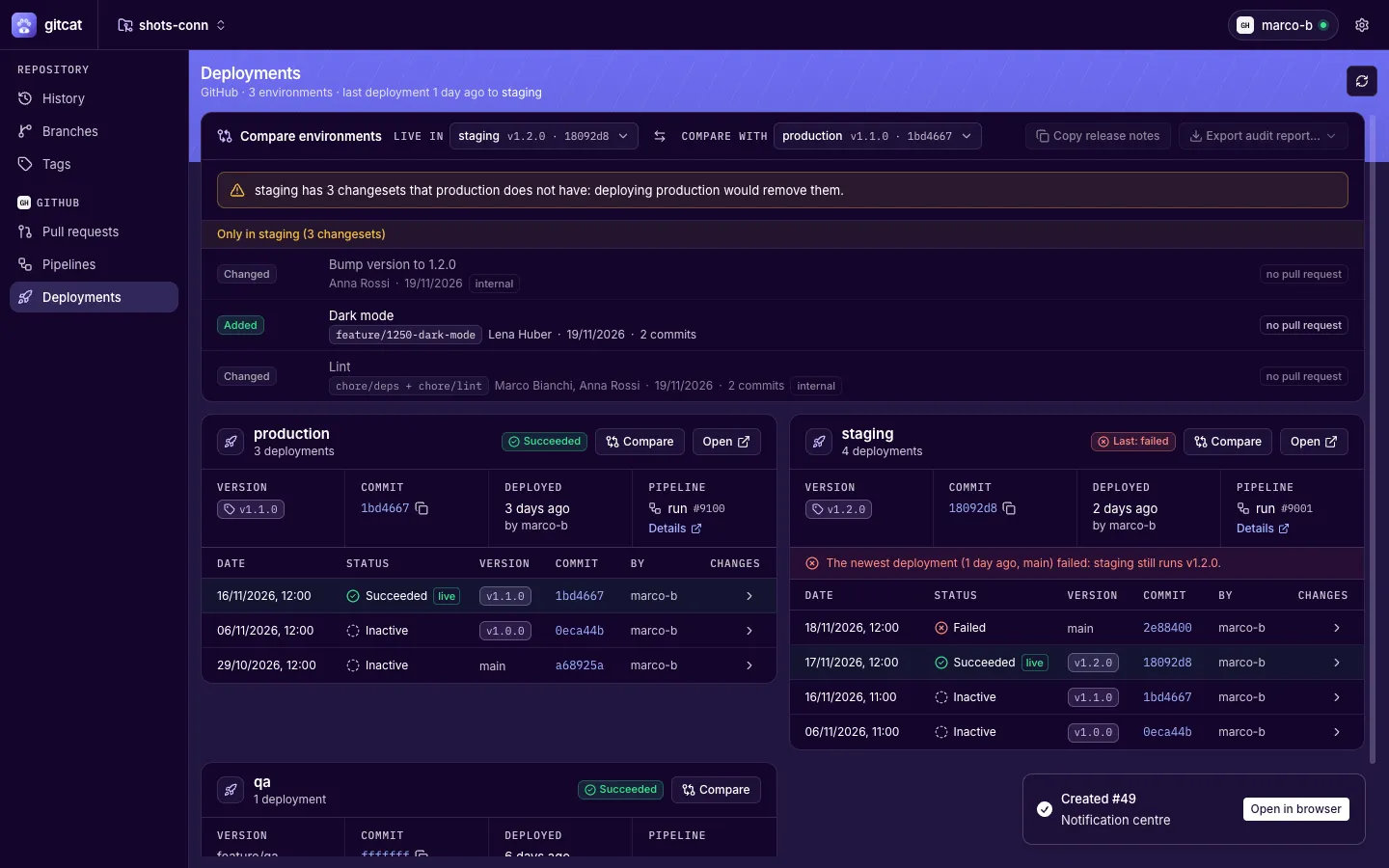
The live environment has a change the other side lacks: deploying would remove it.
Share it
Copy release notes copies the changes as Keep a Changelog Markdown, user-facing changes only. Export audit report… saves the audit report of exactly these changes as HTML, Markdown, CSV or JSON.
Audit report of a deployment
The audit report documents the range you compare: who wrote each change, who integrated it, whether it went through a pull request and who approved it, its risk, plus a summary of the changes that need attention. After saving, a notification summarises it (“12 changes · 2 without pull request · 1 high risk · 0 not approved”) and Open opens an HTML report in your browser or shows the other formats in their folder.
Release approval evidence
Export the report for staging → production before each production deployment and keep it with the release: it is the record of what went live and who approved it. See Change audit reports.