Desktop app / Compare and trace commits
Compare and trace commits
See what entered a branch between two releases or branches, find the integration and the first tag of any commit, and turn a range into release notes.
Two questions come up before every release and after every incident: what changed since the last version? and when did this commit reach main, and which release shipped it? The History page answers both from the local clone.
Compare two refs
Compare with… in the toolbar limits the history to what entered the analysed branch since another branch or tag. The picker lists remote branches, local branches and tags; type to filter.
With a comparison active:
- the list contains only the changesets reachable from the analysed branch and not from the other ref, grouped the same way (in Git terms,
git log <branch> ^<other>); - the list header reads “on
<branch>since<other>”; - search, filters, export and the audit report of the current view apply to the compared range.
To return to the full history, open Compare with… and choose Clear comparison.
Compare two releases
Open the history of the newer release
On the Tags page, hover over the newer tag, for example v1.2.0, and click its history button (Show the history up to this tag). The History page now analyses that tag.
Choose the older release
Click Compare with… and choose the previous tag, for example v1.1.0.
Read or export the range
The list shows every integration and direct commit that v1.2.0 contains and v1.1.0 does not. Export it as Markdown or HTML for release notes, or open the audit report.
To see what is waiting for the next release instead, analyse main and compare with the last release tag.
Compare two branches
Analyse one branch and compare with the other. For example, analyse release/2.0 and compare with main to see what the release branch has that main does not, such as hotfixes that were never merged back. Swap the two to see what main has gained since the release branch was cut.
Where did this commit enter?
Every commit on a branch entered it through exactly one entry: an integration or a direct commit. mergecat finds it for you.
Find the commit
Paste its SHA (or the first characters) into the search box. The integration that contains it stays in the list with a 1 match chip.
Select the commit
Expand the group and select the commit. In the graph view you can select any commit directly.
Read the answer
The details pane shows:
- Entered the branch: the integration that brought the commit in, with its branch name and date. Click it to jump to that changeset. A direct commit says “directly, as this commit”; a commit that is not part of the analysed history says “not found in this history”.
- First tag containing it: the oldest tag that contains the commit, usually the first release that shipped it. The field is absent when no tag contains the commit yet.
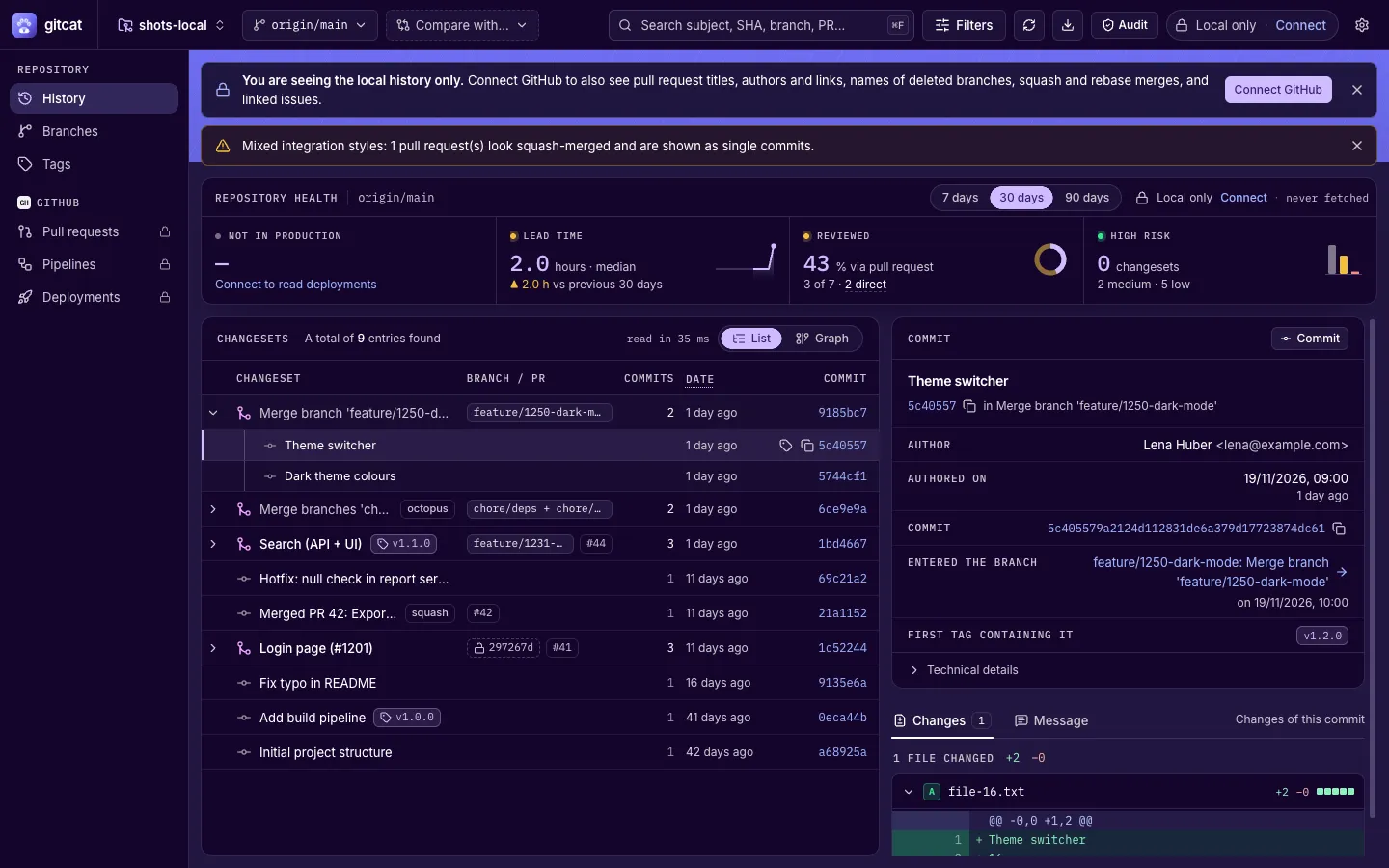
Entered the branch and First tag containing it, for a commit inside a changeset.
Release notes
mergecat offers several ways to turn a range into release notes:
| Where | What you get |
|---|---|
| History page, compare two releases, then Export as Markdown or Export as HTML | Every change of the range, grouped by integration, with branch, pull request, integrator and commits. |
| Deployments page, Compare environments, then Copy release notes | Keep a Changelog Markdown of the changes the next deployment brings, user-facing changes only. Needs a connection. See Deployments. |
Claude Code, /mergecat:changelog v1.1.0..v1.2.0 | A Keep a Changelog draft written by Claude from the changesets, for a range of tags, dates or commits. See Changelogs. |
| Audit report…, scope Between two releases | The release documented for a change audit: authors, approvals, risk. See Change audit reports. |