Connections / Local only vs connected
Local only vs connected
What mergecat shows from Git alone, what connecting GitHub, GitLab or Azure DevOps adds, and how connections and credentials are handled.
mergecat works on the local repository without any connection. Connecting the hosting service adds data that Git does not store: pull requests, names of deleted branches, squash and rebase merges, linked issues, pipelines and deployments. A connection is optional, belongs to you rather than to a repository, and can be removed at any time.
What a connection adds
| Feature | Local only | Connected |
|---|---|---|
| Changesets for no-fast-forward merges | Yes, computed from the Git graph | Yes |
| Diffs, filters, export, compare releases | Yes | Yes |
| Branch status, fetch, tags (create and push) | Yes, with your own Git credentials | Yes |
| Name of the merged branch | Only if the merge message contains it or the branch still exists | Always, also after the branch was deleted |
| Pull request number, title, author and link | Number and title only when the merge message contains them | Full pull request data with a link |
| Changesets for squash and rebase merges | No: commits look like direct commits | Rebase-merged pull requests are grouped; squash-merged ones show their original commits |
| Linked issues and work items | No | Issues closed by the pull request |
| Pull request labels | No | Labels on each changeset |
| Pull requests: list, reviews, checks, create | No | Yes, with reviewers and checks; new ones from any branch |
| Pipelines: YAML and activity, runs | No | Every pipeline with its runs and the status of each stage and job |
| Deployments per environment with the deployed tag | Desktop app: no. VS Code: environments defined by branches or tags in the settings | Current and previous deployments of every environment, with status, date and tag |
The Connections dialog of the desktop app shows the same comparison under What you see with and without a connection. Where data is missing, the app also points out what connecting would add: the banner above the history, the lock on the branch chips, the pull request card and the locked pages.
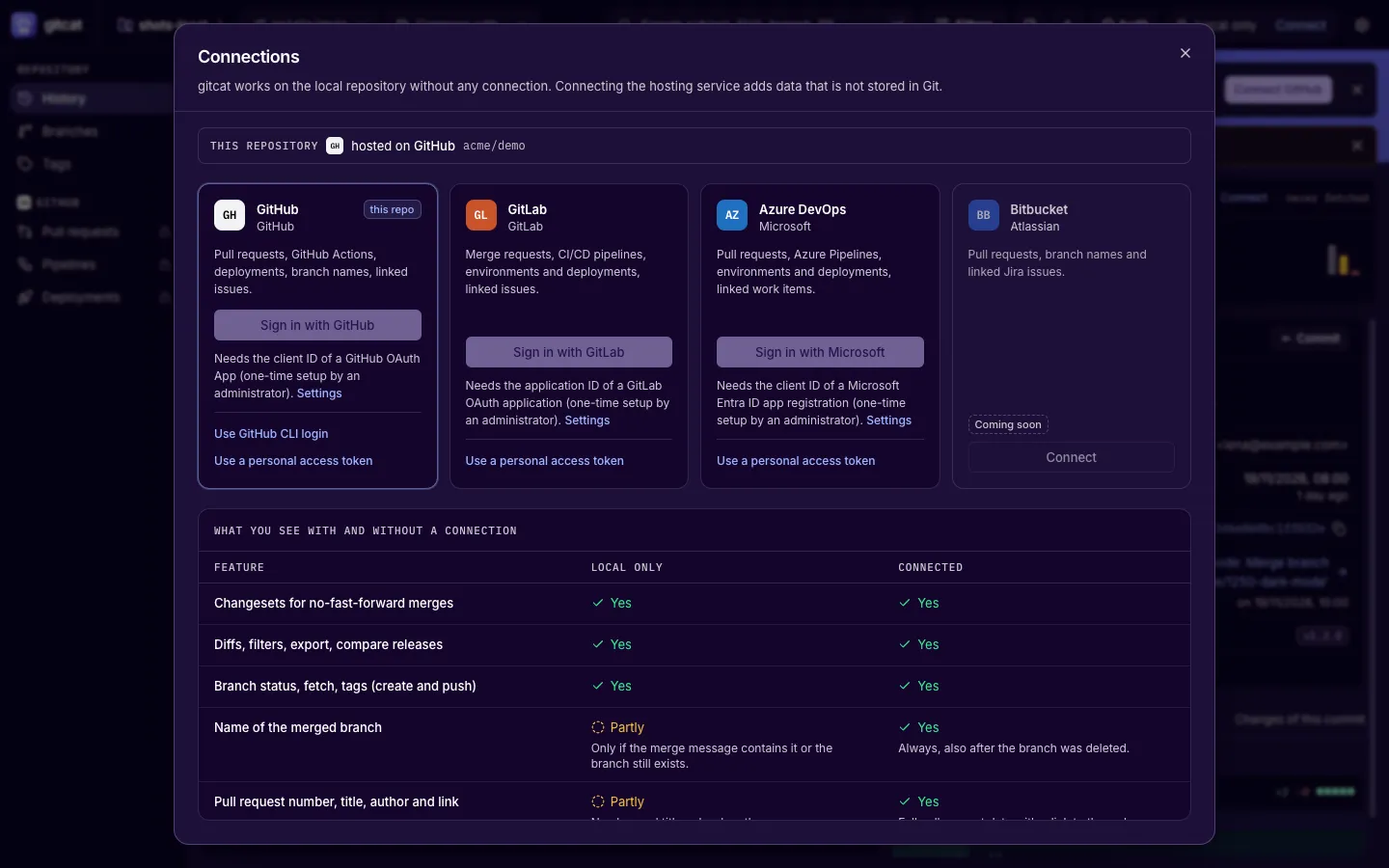
The Connections dialog, not connected yet.
Connectors
| Connector | Adds | Status |
|---|---|---|
| GitHub | Pull requests, GitHub Actions, deployments, branch names, linked issues | Available |
| GitLab | Merge requests, CI/CD pipelines, environments and deployments, linked issues | Available |
| Azure DevOps | Pull requests, Azure Pipelines, environments and deployments, linked work items | Available |
| Bitbucket | Pull requests, branch names and linked Jira issues | Coming soon |
A repository on Bitbucket shows the data stored in Git (merge messages and branches that still exist) until its connector is available.
Which service a repository uses
mergecat recognises the hosting service from the remote URLs of the repository: the origin remote if it is on a known service, else the first remote that is. HTTPS and SSH URLs are both recognised.
| Service | Recognised remotes |
|---|---|
| GitHub | github.com |
| GitLab | gitlab.com |
| Azure DevOps | dev.azure.com, *.visualstudio.com, ssh.dev.azure.com, and Azure DevOps Server URLs that contain /_git/ |
| Bitbucket | bitbucket.org (coming soon) |
GitHub Enterprise Server and self-managed GitLab hosts are not recognised from remote URLs yet. A repository without a recognised remote shows Local repository in the toolbar, and the Pull requests, Pipelines and Deployments pages explain that they need a remote on GitHub, GitLab or Azure DevOps.
Connect
Open Connections from File › Connections…, from the connection pill at the right of the toolbar (Local only · Connect), or from any Connect button in the app. The card of the repository’s service is marked this repo. Each card offers the sign-in methods of its service:
| Service | Desktop app | VS Code |
|---|---|---|
| GitHub | Sign in with GitHub (needs an OAuth App client ID), Use GitHub CLI login, or a personal access token | Your VS Code GitHub account, nothing to configure |
| GitLab | Sign in with GitLab (needs an OAuth application ID), or a personal access token | A personal access token, or Sign in with GitLab when mergecat.gitlab.clientId is set |
| Azure DevOps | Sign in with Microsoft (needs an Entra ID app client ID), or a personal access token | Your VS Code Microsoft account (single sign-on), or a personal access token |
The browser sign-ins use a device code: mergecat copies a short code to your clipboard and opens the service’s sign-in page, where your single sign-on, MFA or 2FA apply. You confirm the code there and the card shows the account. The client IDs they need are not secrets: an administrator registers the app once for the organisation. The steps are on each service’s page.
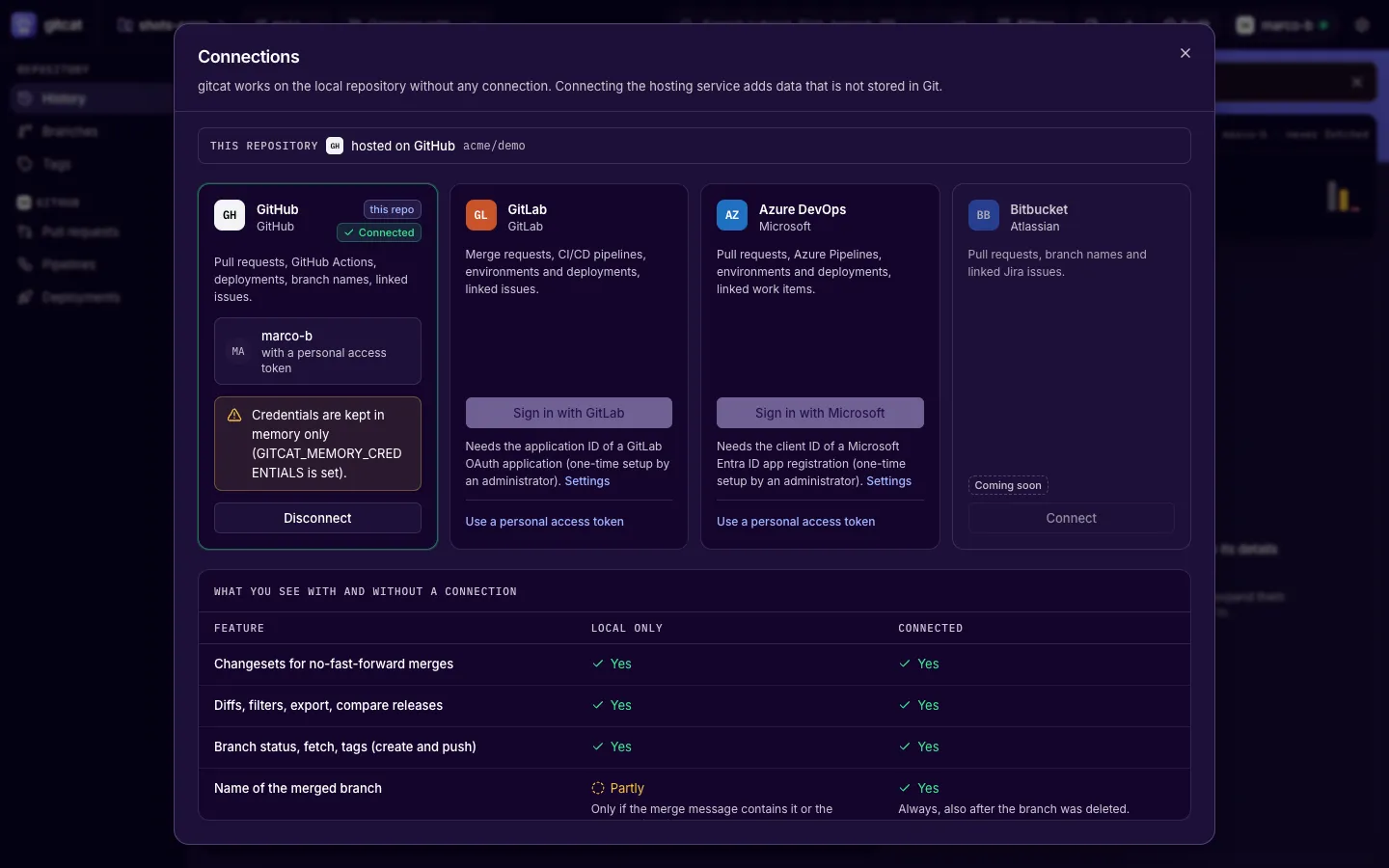
Connected to GitHub: the account and how it signed in.
You sign in once per service: the connection applies to every repository on that service. A GitLab connection belongs to one GitLab instance. To remove a connection, click Disconnect on its card; mergecat deletes the stored credentials.
Where credentials are stored
The desktop app encrypts tokens with the operating system keychain, through Electron safeStorage:
| System | Keychain |
|---|---|
| macOS | Keychain |
| Windows | DPAPI |
| Linux | libsecret (GNOME Keyring) or KWallet |
The encrypted file is credentials.bin in the app data folder. The GitHub CLI method stores no token at all: mergecat asks gh for it when needed.
No keychain available
Without a system keychain, for example on Linux without GNOME Keyring or KWallet, credentials are kept in memory only and never written to disk in clear text. The connected card says so, and you connect again after restarting the app.
Access tokens from Sign in with GitLab and Sign in with Microsoft expire; mergecat refreshes them automatically. When a service rejects a stored sign-in, mergecat asks you to sign in again in Connections.
The VS Code extension keeps its tokens in VS Code’s SecretStorage; see VS Code extension.
Pull request cache
Pull request data is loaded for the entries you are looking at and cached per commit SHA in the pull-request-cache folder of the app data folder, never in the repository. Because the key is the commit SHA, the cache stays valid across fetches. If the data cannot be loaded, mergecat shows the local history and a bar that explains why.
Approvals in the audit report also come from the connection; without it they are reported as unknown.