Desktop app / Pull requests
Pull requests
Browse the pull requests (GitLab merge requests) of the repository with reviewers, votes and checks, and create new ones with a title and description drafted from the commits.
The Pull requests page lists the pull requests of the repository on GitHub, GitLab or Azure DevOps, with their reviewers, votes and checks, and creates new ones. On GitLab the page and the dialog say merge request. Open it from Pull requests in the navigation.
Before you start
The page needs the hosting service of the repository to be connected. Until then it shows what connecting adds and a Connect button that opens Connections. You sign in once per service: the connection applies to every repository on that service. See Local only vs connected.
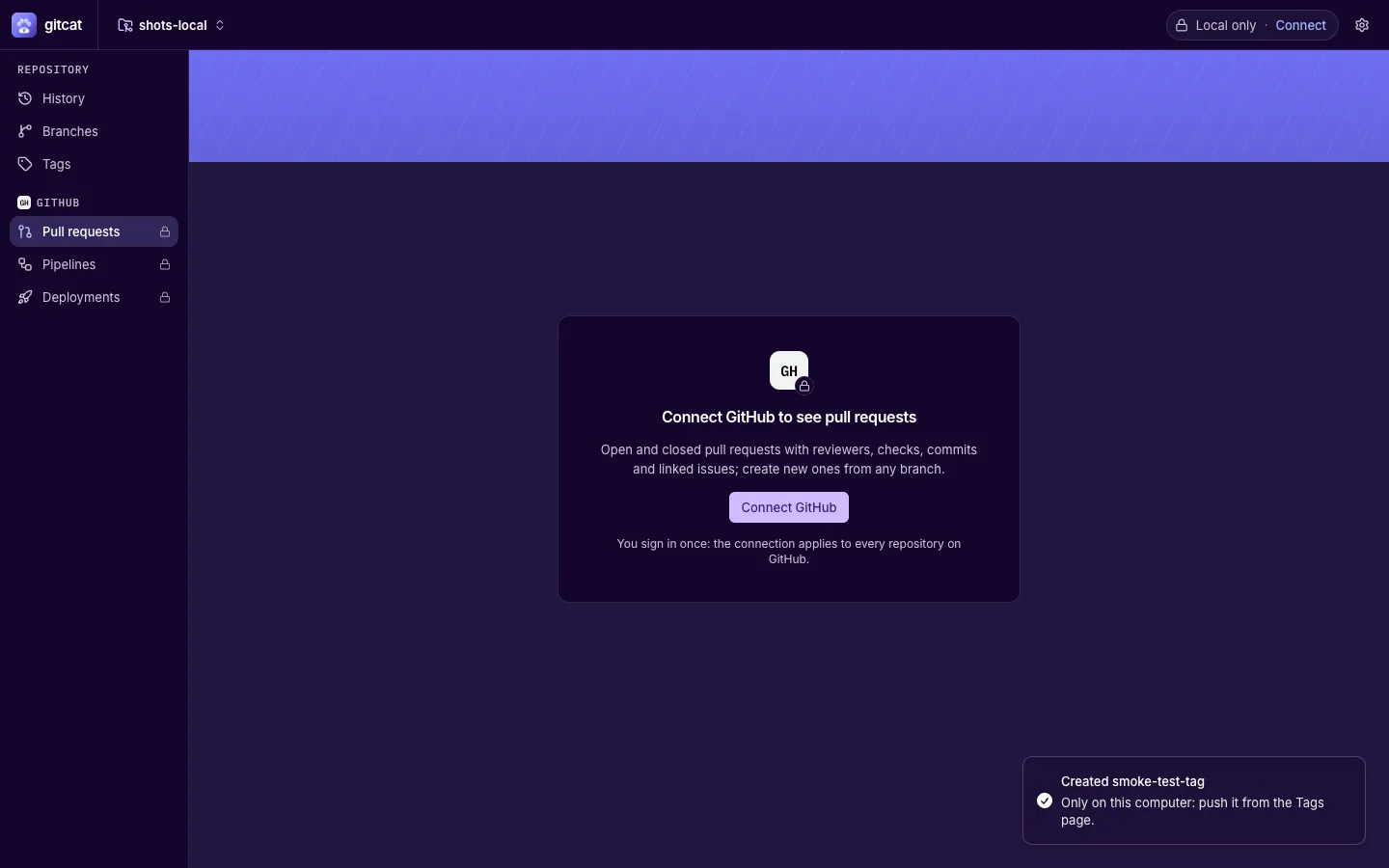
Not connected yet: the page offers to connect GitHub.
The pull request list
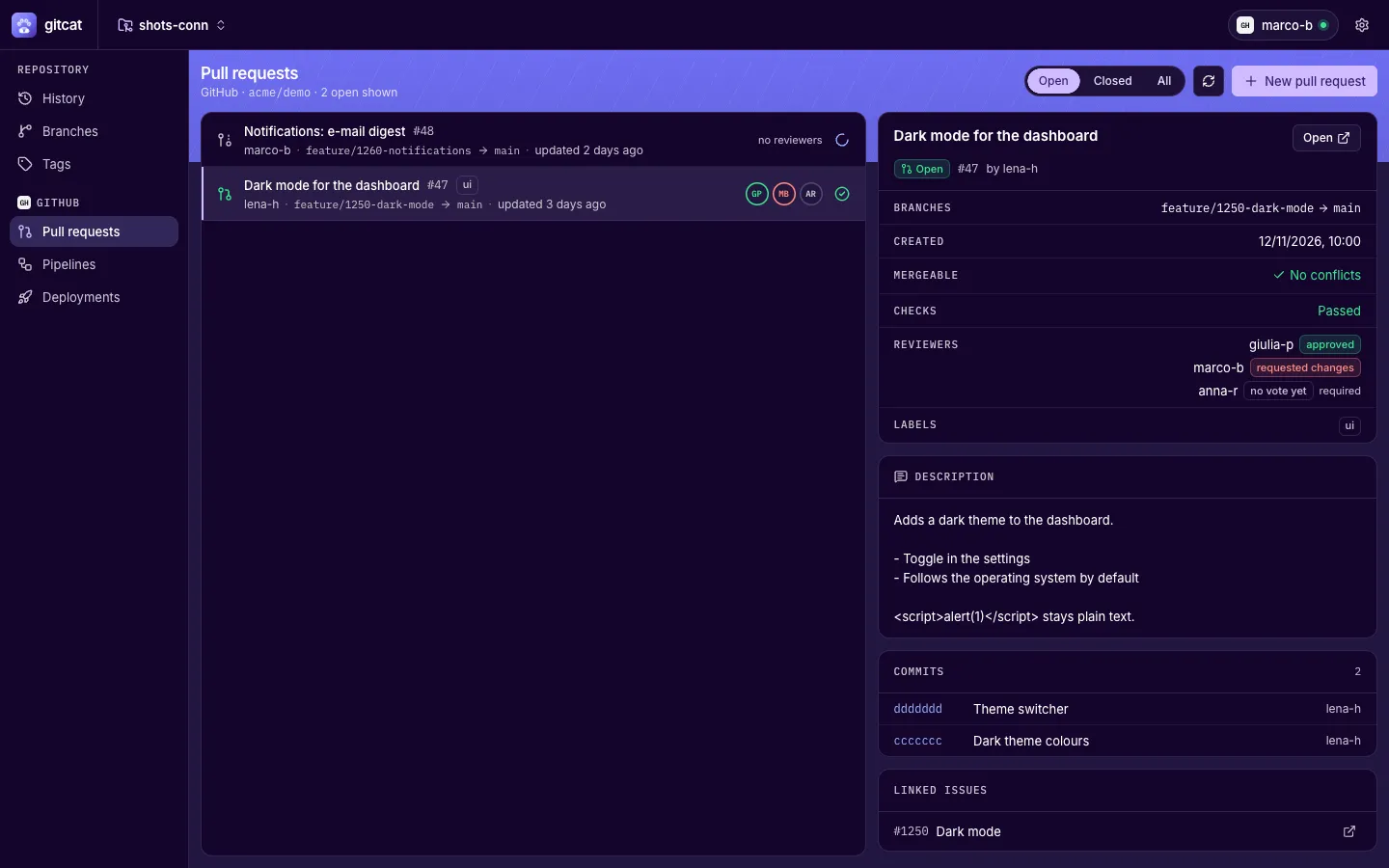
Open pull requests with reviewers and checks; details on the right.
The header shows the service, the repository and how many pull requests are listed. Choose Open, Closed or All, reload with the refresh button, or create one with New pull request.
Each row shows:
- the state: Open, Draft, Merged or Closed;
- the title, the number and up to three labels;
- the author, the source and target branches, and when it was last updated or merged;
- the reviewers, with their vote on hover: approved, requested changes, commented or no vote yet, and whether the review is required;
- the checks: passed, failed or running.
Pull request details
Select a pull request to see its details on the right:
| Field | Content |
|---|---|
| Title, state, number, author | With Open to view it in the browser. |
| Branches | Source → target. |
| Created, Merged or Closed | Dates. |
| Mergeable | For open pull requests: No conflicts or Has conflicts, when the service reports it. |
| Checks | Passed, Failed, Running or None. |
| Reviewers | Each reviewer with the vote, and required for required reviewers. |
| Labels | All labels. |
| Description | The description as plain text. |
| Commits | The commits of the pull request. |
| Linked issues | Issues or work items, with a link to each. |
A draft pull request says that reviewers are not asked to review it yet.
Create a pull request
Open New pull request from the button on this page, or from Create pull request… in the row menu of a branch on the Branches page.
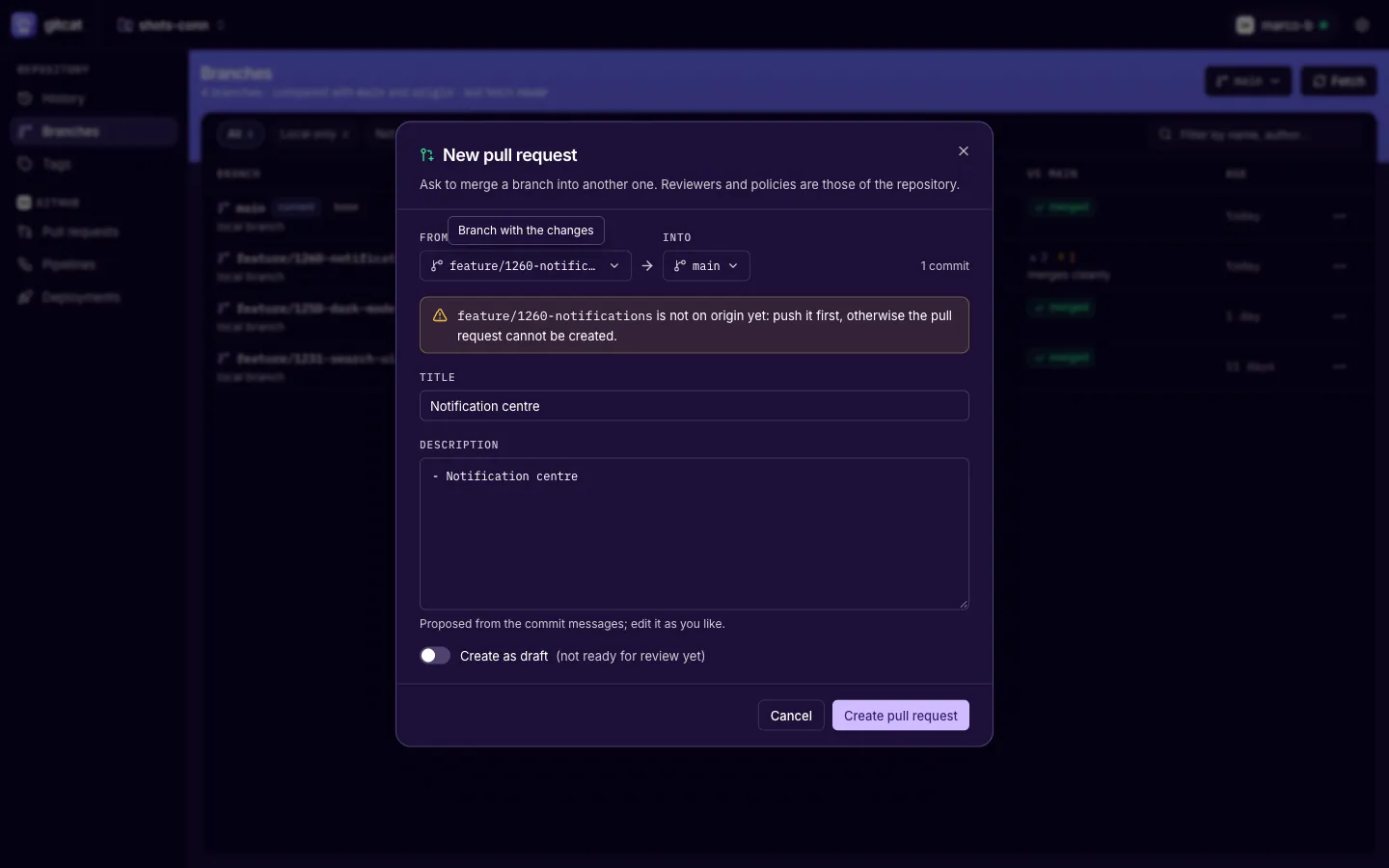
Title and description are drafted from the commits.
Choose the branches
From is the branch with the changes: the current branch, or the branch you started from on the Branches page. Into is the branch that receives them, by default the default branch of the repository. The dialog shows how many commits the source has that the target does not.
Review the title and description
mergecat proposes them from the commits: with a single commit, its subject becomes the title; with several, the title comes from the branch name and the description lists the commit subjects. Edit both as you like; your edits are kept if you change the branches.
Create it
Turn on Create as draft if the change is not ready for review yet, then click Create pull request. The new pull request is selected in the list, and a notification offers Open in browser.
The dialog warns when the source and target are the same branch, when the source has no commits that are not already in the target, and when the source branch is not on origin yet: push it first, otherwise the pull request cannot be created. Reviewers and policies are those of the repository on the hosting service.
Permissions
Creating a pull request needs write access on the hosting service:
| Service | What the connection needs |
|---|---|
| GitHub | Classic token: repo. Fine-grained token: Pull requests write. Sign in with GitHub requests the right scopes. See GitHub. |
| GitLab | Scope api (read_api is enough to read) and at least the Developer role in the project. See GitLab. |
| Azure DevOps | Token scope Code (Read & write). See Azure DevOps. |
Azure DevOps
Pull request checks are not shown for Azure DevOps yet.