Desktop app / History: changesets and graph
History: changesets and graph
The History page of the desktop app, from the branch picker and the Repository health panel to the rows, chips, groups and the details pane.
The History page shows what entered a branch, grouped by integration. It opens when you open a repository and is the first item of the navigation on the left. Everything on it works on the local clone; a connection adds pull request data to the same rows.
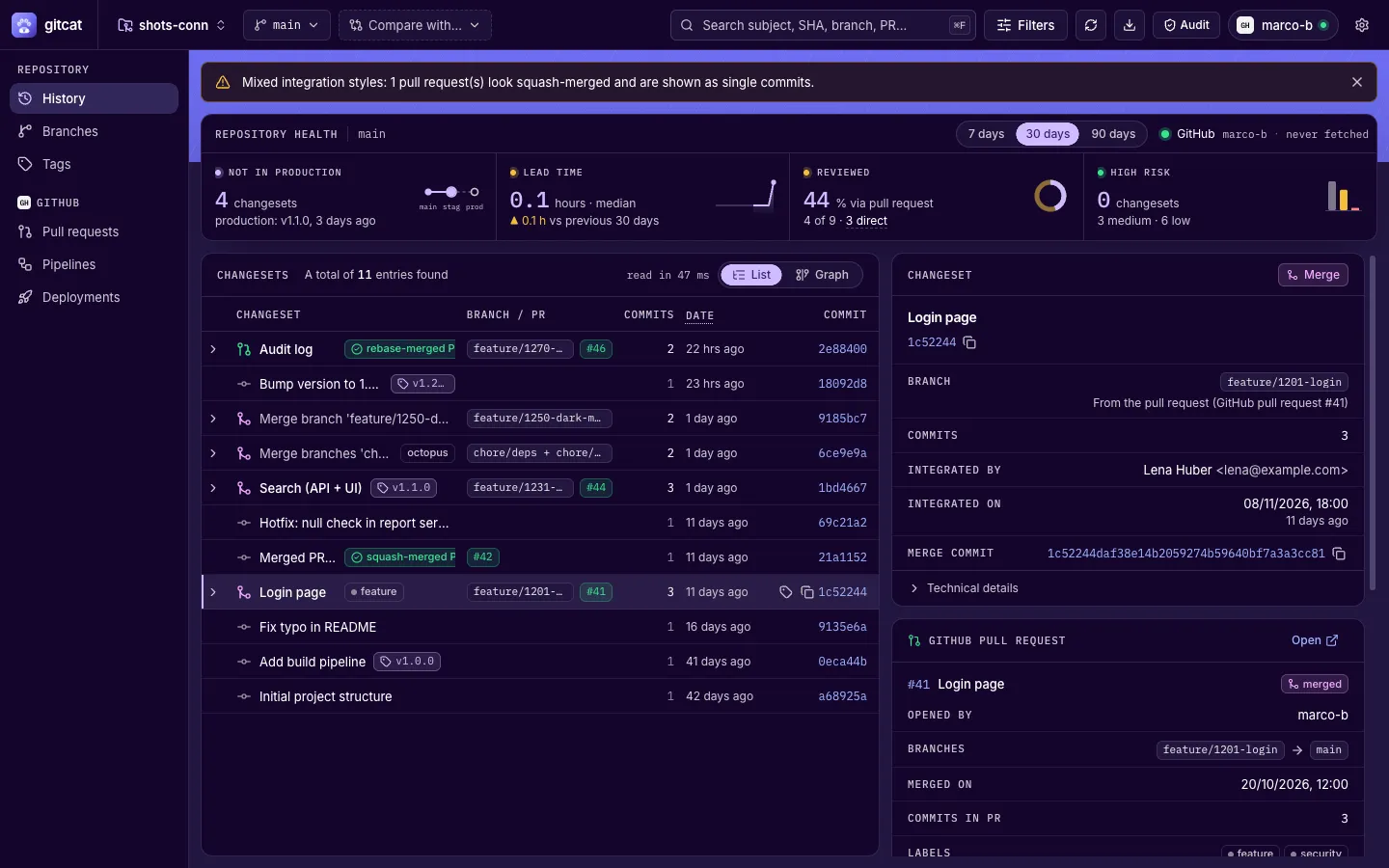
Connected to GitHub: pull request titles, labels and a pull request card in the details pane.
Layout
The window has a toolbar at the top, the navigation on the left and the page below the toolbar.
| Toolbar control | What it does |
|---|---|
| Repository menu | The repository name. Shows its path, Open a repository… and the recent repositories. |
| Branch picker | The branch to analyse. |
| Compare with… | Only shows what entered since another branch or tag. See Compare and trace commits. |
| Search box | Searches subjects, SHAs, branches and pull requests. |
| Filters | Author, date range, forward-integration merges. A dot marks active filters. |
| Refresh | Reads the history again. |
| Export | Markdown, CSV or HTML of the current view, and Audit report…. |
| Audit | Opens the audit report dialog. See Change audit reports. |
| Connection pill | Local only · Connect, or the account you are connected with. Opens Connections. |
| Settings | Opens Settings. |
The navigation has two sections. Repository holds the pages that work on the local clone: History, Branches and Tags. The second section is named after the hosting service of the repository and holds Pull requests (Merge requests on GitLab), Pipelines and Deployments; a lock icon marks them while the service is not connected. In a window narrower than 1,280 pixels the navigation shows icons only.
Choose the branch
The branch picker lists remote branches and local branches; HEAD marks the branch checked out in the working tree. Type to filter, then pick a branch.
When you open a repository, mergecat analyses its default branch: the branch that origin/HEAD points to, else origin/main, origin/master, main or master, else the branch that is checked out. To see the history up to a tag, use the history button of that tag on the Tags page.
List or graph
The List | Graph switch in the header of the history card changes the layout. mergecat remembers your choice on this computer.
- List shows the changesets: integrations you can expand and direct commits.
- Graph shows every commit with its lanes. See Graph view.
Rows of the list
| Column | Content |
|---|---|
| Changeset | An icon for the kind of entry, the title, tag chips and flags. The title is the pull request title when known, else the commit subject. Generic messages such as Merge branch 'x' are dimmed, because the branch chip already says it. |
| Branch / PR | The merged branch and the pull request number. |
| Commits | How many commits the group contains (1 for a direct commit). |
| Integrator | Who made the merge, or the author of a direct commit. |
| Date | When the change entered the branch. Click the column header to switch between the age (“3 days ago”) and the date and time. |
| Commit | The short SHA. On hover: Create tag here and Copy SHA. |
On a narrow window the Integrator, Commits and Date columns are hidden, in that order.
Kinds of entries
| Icon | Entry |
|---|---|
| Merge | An integration: a merge commit with the commits it brought in. |
| Pull request | A rebase-merged pull request, grouped from its commits (connected). |
| Commit | A direct commit, made on the branch itself. |
Chips
- Branch chip: the merged branch. Hover to see where the name comes from; a lock icon means connecting would resolve an unknown name. See Naming the merged branch.
- Pull request number (
#41): from the hosting service when connected, otherwise from the commit message. - Tag chips: the tags on that commit, up to two, plus a count of the others.
- Labels: up to three pull request labels (connected).
- match: the number of commits inside the group that match the search or the author filter.
- Flags:
| Flag | Meaning |
|---|---|
| squash | The message says this commit completed a pull request, but it is not a merge: the pull request was probably squash-merged, so its original commits are not in the history. |
| squash-merged PR | Confirmed by the hosting service: this commit is a squash-merged pull request. |
| rebase-merged PR | Confirmed by the hosting service: these commits came from a rebase-merged pull request. |
| inverted | This merge brought the branch itself into something else (a git pull merge on the branch, or a fast-forward onto a feature branch). From here the first-parent path may follow the wrong side. |
| octopus | A merge of three or more branches at once. |
| empty | The merge brought in no commit that was not already on the branch. |
| shallow | The history is cut here because the repository is a shallow clone. |
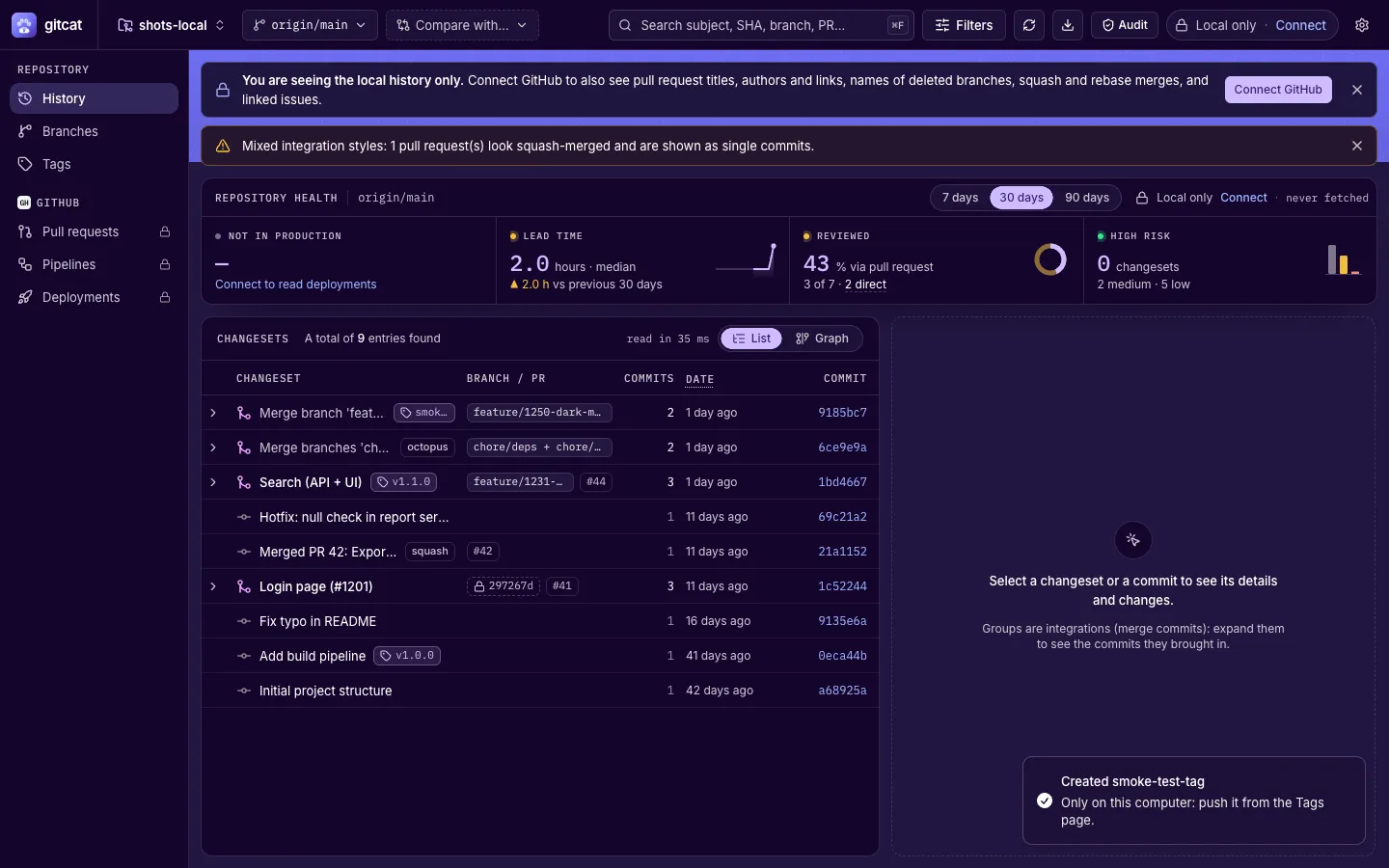
Tag chips on the rows; a tag created with Create tag here.
Repository health
The Repository health panel above the list shows the few figures a repository owner checks, for the analysed branch. Its header shows the branch, the period switch (7 days, 30 days, 90 days; 30 by default), the connection (the service and account, or Local only with Connect) and when the repository was last fetched (hover for the exact time). The figures cover the whole branch in the chosen period: the search and the filters do not change them.
| Figure | Value |
|---|---|
| Not in production | Changesets on the default branch that production does not run yet, from the deployments of the hosting service, with the version live in production and when it was deployed. Click it to open Deployments. Needs a connection: until then it offers Connect to read deployments. |
| Lead time | From the first commit of a change to its integration into the branch: the median of the period, in hours or days, with the trend against the previous period of the same length (▲ slower, ▼ faster) and a line of the weekly median. |
| Reviewed | The share of the period’s changesets that went through a pull request, with “N of M” and the number of direct commits. Click it to highlight the direct commits in the list. |
| High risk | How many changesets of the period are high risk, with the medium and low ones in the note (see risk factors). Click it to highlight them in the list. |
A highlight shows a chip in the list header (Direct commits or High risk, with the count) and follows the period; click the figure again, or the × of the chip, to clear it.
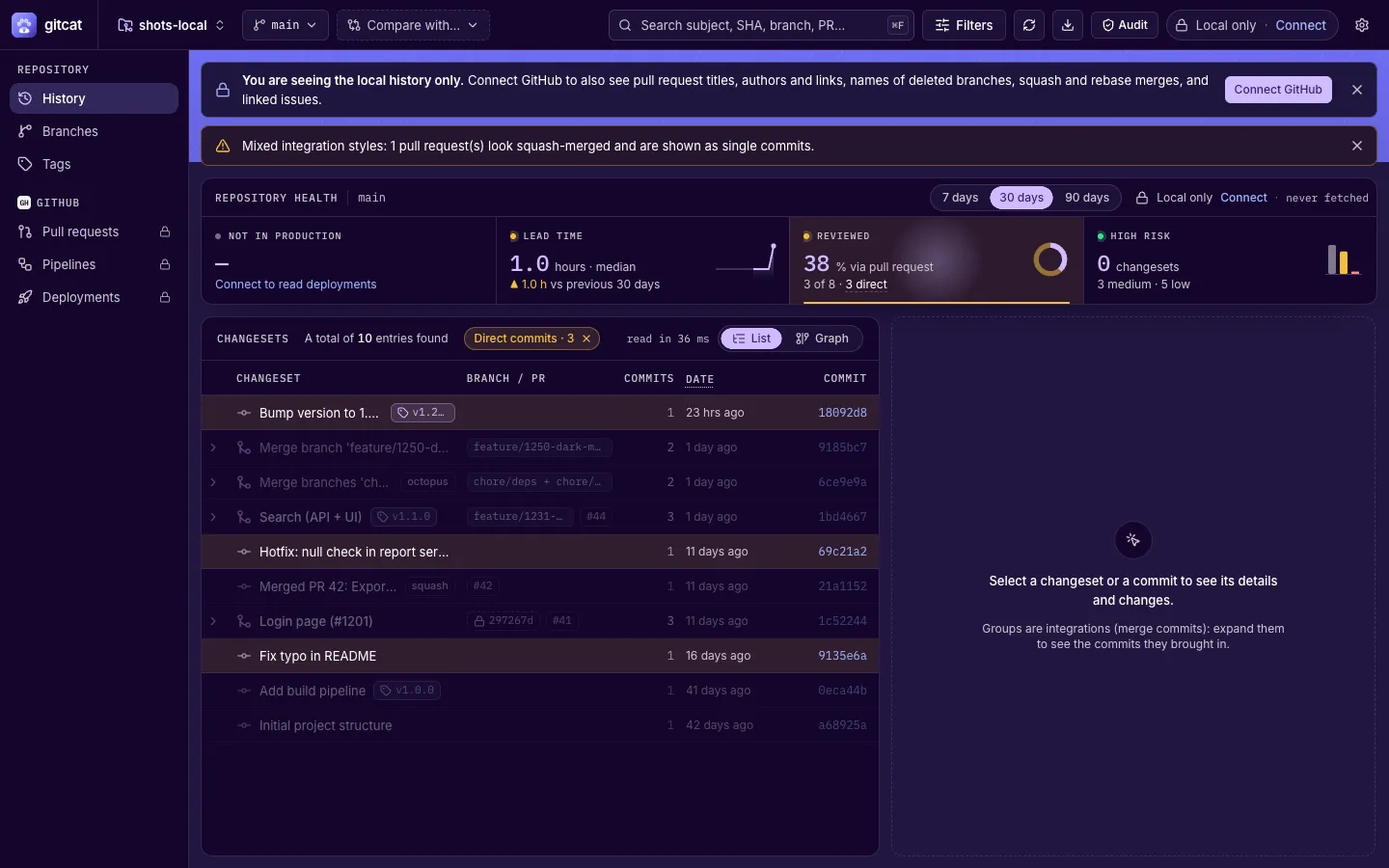
Reviewed clicked: the direct commits of the period stand out in the list.
Banners
Bars above the Repository health panel tell you what is missing or unusual:
- You are seeing the local history only. The repository is on GitHub, GitLab or Azure DevOps but not connected. Connect opens Connections.
- A connector coming soon (Bitbucket): mergecat shows what is stored in Git.
- Pull request data could not be loaded: the connection failed; the local history is shown.
- Warnings about the integration style of the branch.
Close the connection banner or a warning with its × button; it stays closed until you open the repository again.
Groups and lanes
Expand a group with its chevron, a double-click, or → (← collapses, Space toggles). Inside:
- the commits that the integration brought in, with their author and author date;
- nested merges as sub-groups with their own commits;
- one Lane per merged branch for octopus merges;
- forward-integration merges, only when Hide forward-integration merges is off in Filters.
A group without new commits says “No commits (everything was already on the branch)”. The list loads entries page by page: Load more at the bottom shows how many of the total are loaded. Set the page size in Settings › Entries per page (50 to 5,000, default 200).
The details pane
Select a row to see its details on the right. Drag the divider between the list and the pane to resize it, or focus the divider and use the arrow keys.
Changeset or commit card
The badge at the top says what you selected: Merge, Rebase-merged PR, Squash-merged PR, Squash, Direct commit, or inside a group Commit, Nested merge and Forward integration. Below the title and SHA, flags are explained in full.
| Field | Shown for |
|---|---|
| Branch | Groups and nested merges, with the source of the name. |
| Commits | Groups. |
| Integrated by, Integrated on | Groups: who made the merge, and when. |
| Author, Authored on | Commits. |
| Merge commit or Commit | The full SHA, with a copy button. |
| Entered the branch | Commits: the integration that brought the commit in. See below. |
| First tag containing it | Commits: the oldest tag that contains the commit. |
| Technical details | Collapsed: parents, commit date and committer. |
Pull request card
When the repository is connected and the entry came from a pull request, a card shows its number, title and state, Opened by, Branches (source → target), Merged on, Commits in PR, Labels and Linked issues. Open opens it in the browser. For a squash-merged pull request, Show the N original commits of this squash merge lists the commits that the squash replaced.
When the repository is not connected, the card says what the commit message tells (for example “Pull request #41 (from the commit message)”) and what connecting would add.
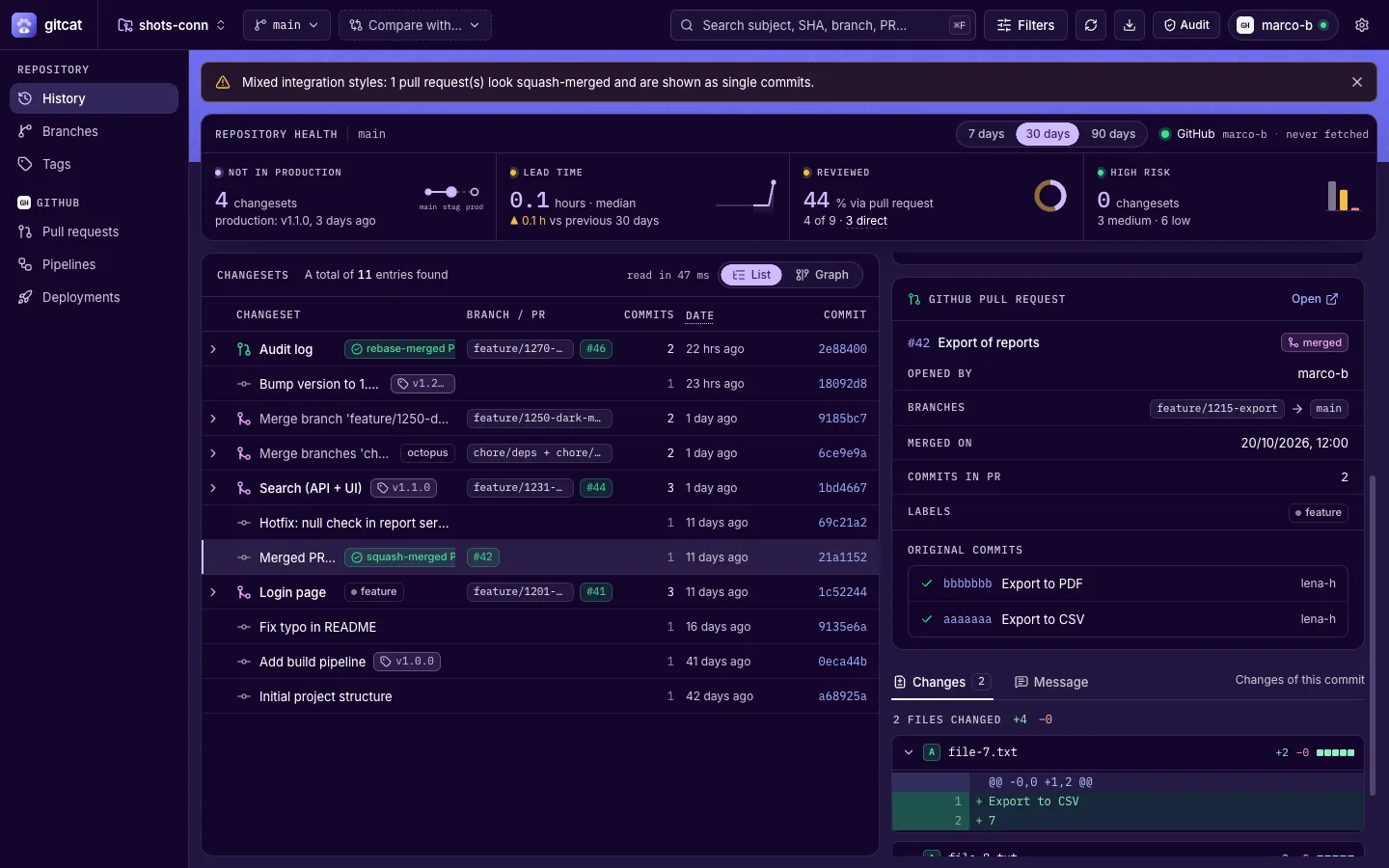
A squash-merged pull request with its original commits (connected).
Changes and Message
The Changes tab shows the diff of the selection and the Message tab the full commit message. Both are described in Diffs, filters and export.
Where did a commit enter?
Select a commit inside a group, or any commit in the graph. Entered the branch names the integration that brought it in, with the date; click it to jump to that changeset in the list. A direct commit says “directly, as this commit”. First tag containing it tells you the first release that shipped it.
To find a commit by SHA, paste the SHA in the search box: the group that contains it shows a match chip. More in Compare and trace commits.
Graph view
Switch to Graph to see every commit of the history with its lanes, newest first. The header counts the commits.
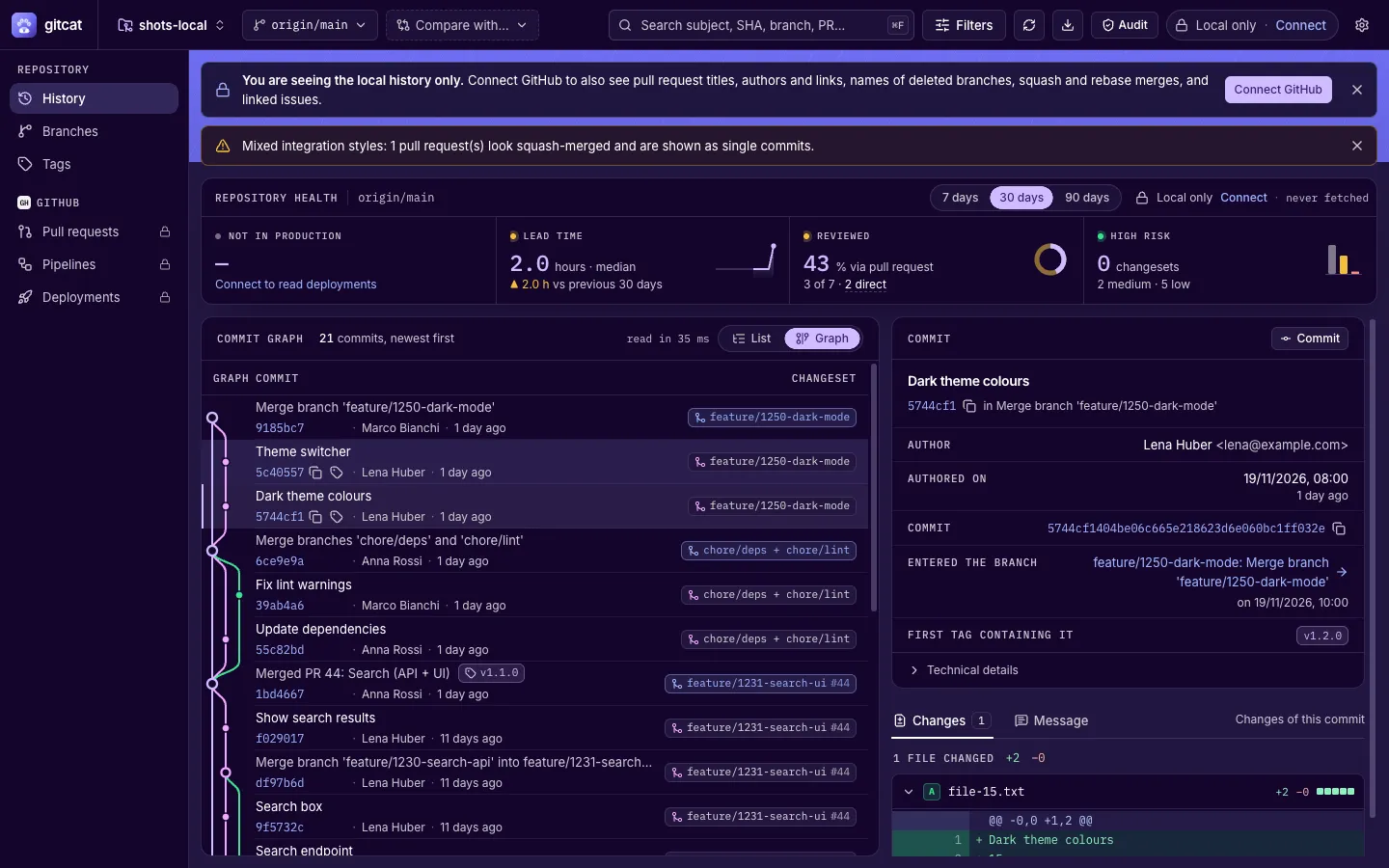
The graph: the changeset chip tells how each commit entered the branch.
- The chip at the end of each row names the changeset that brought the commit into the branch. It is highlighted on the commit that integrated the changeset; direct marks direct commits.
- The search and the author filter dim the commits that do not match, instead of hiding them. The date filters apply to the list only.
- Selecting a commit shows its details. Selecting the commit that integrated a changeset shows the changeset.
- Tag chips, Create tag here and Copy SHA work as in the list.
Keyboard shortcuts
On Windows and Linux, use Ctrl instead of ⌘.
| Shortcut | Action |
|---|---|
| ⌘O | Open a repository |
| ⌘R | Refresh the history |
| ⌘F | Focus the search box |
| ⌘, | Open Settings |
| Enter | Select the focused row |
| → / ← / Space | Expand, collapse or toggle a group |
| ↑ / ↓ | Move between commits in the graph |